





















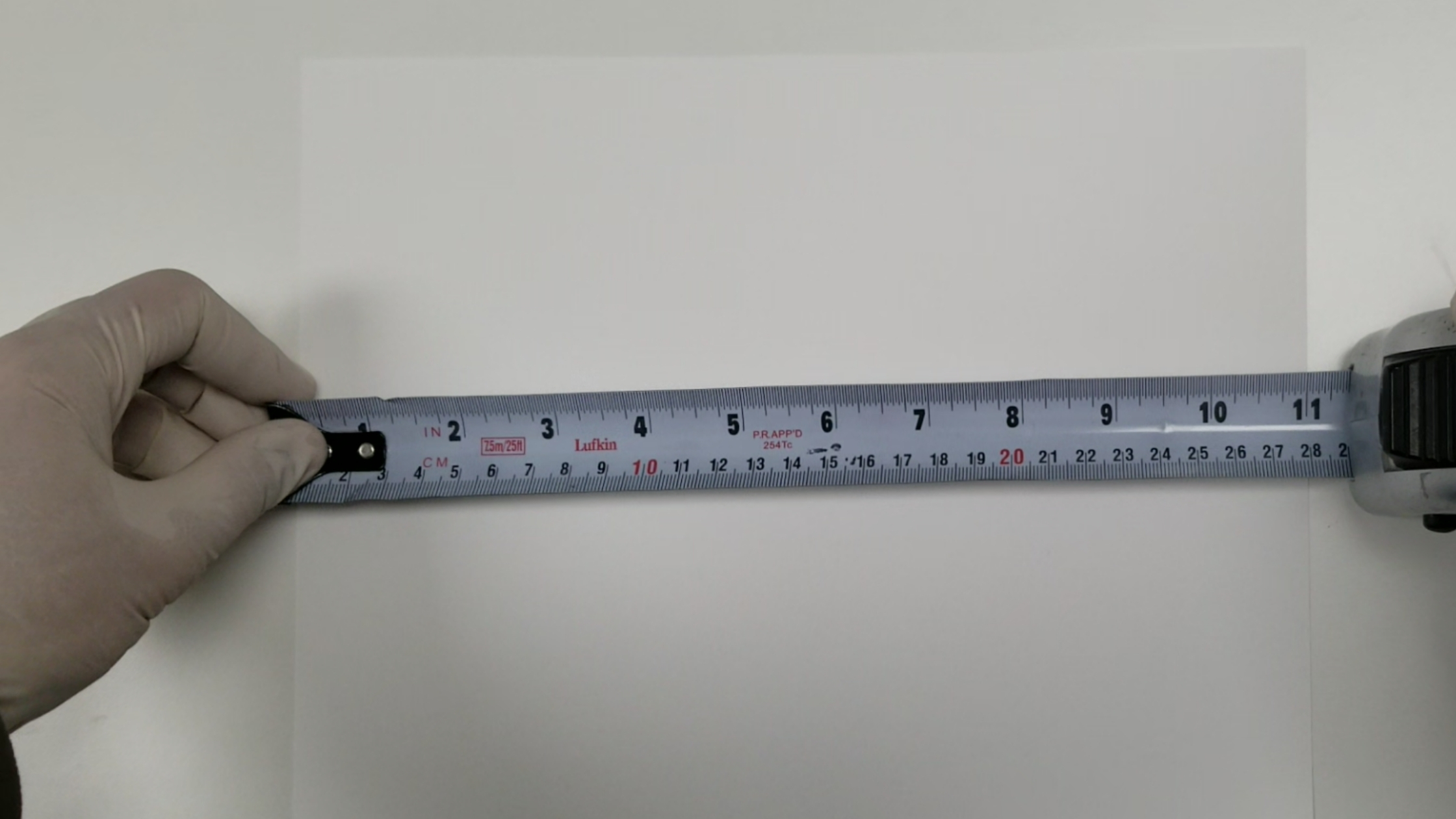
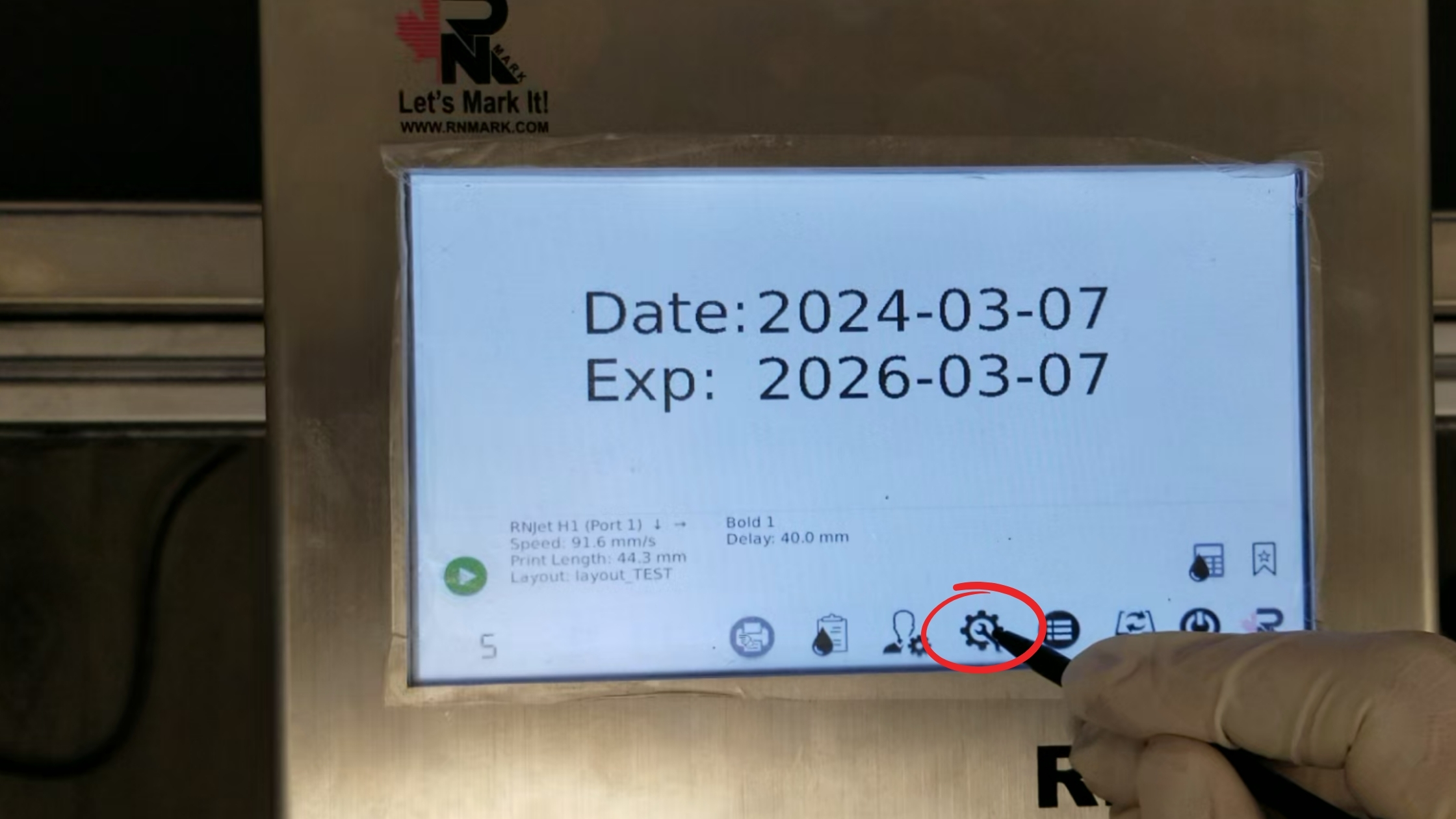
Step 2 – Go to the settings option on the controller to access the speed and delay settings.
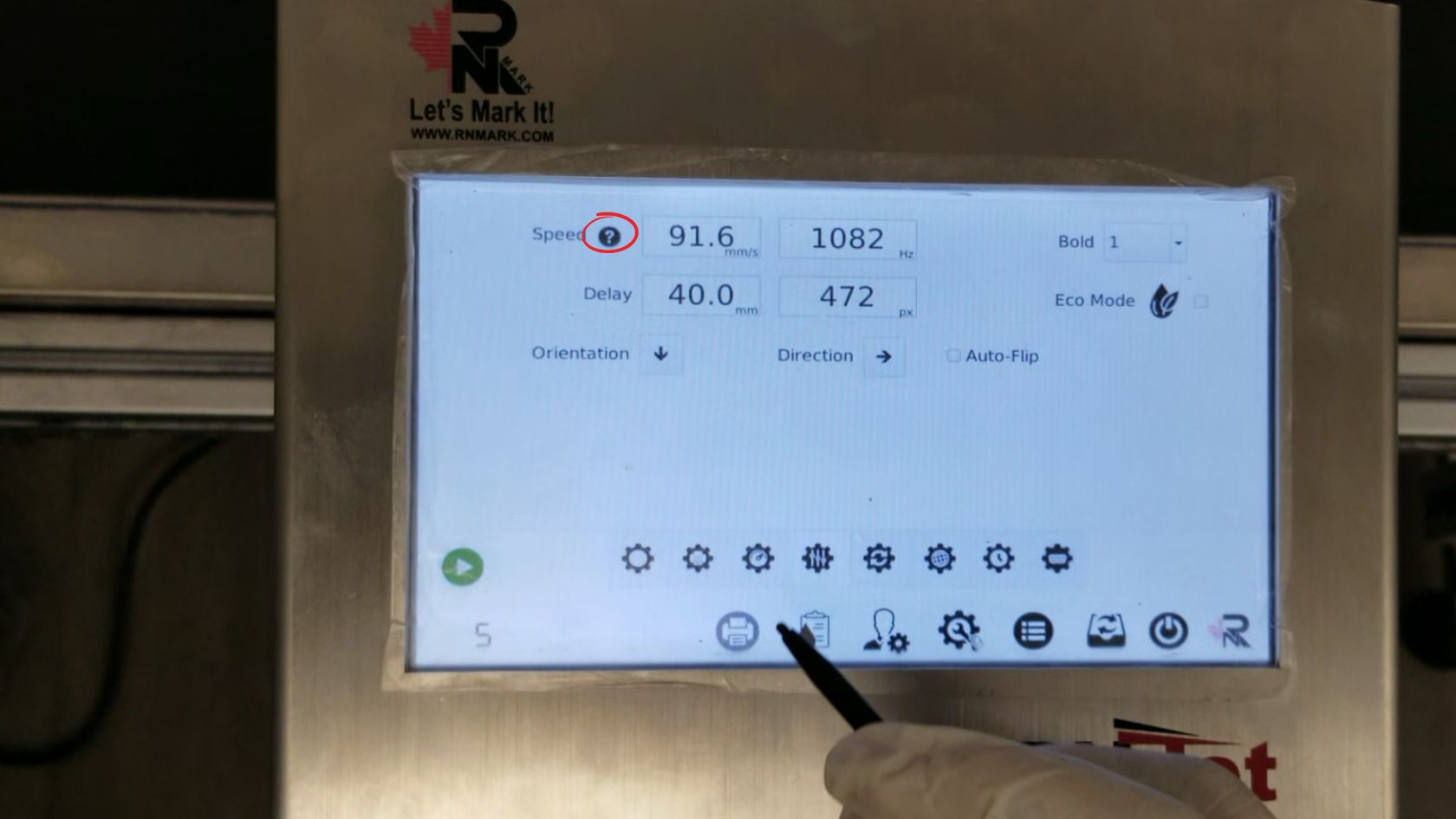
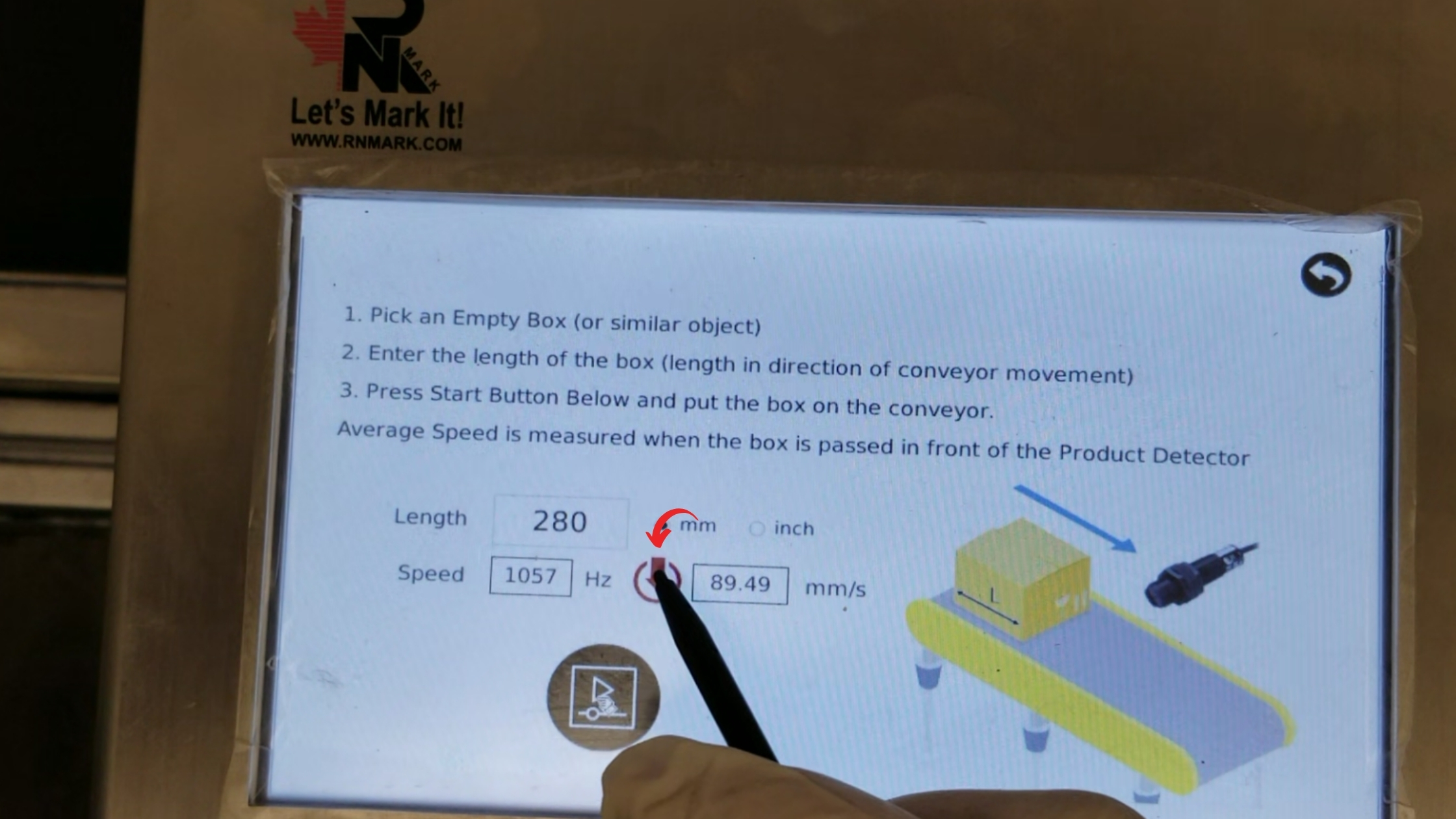
Step 3 – Click on the “?” icon to open the Average Speed Measure feature. Using this feature, you can measure the approximate print speed based on your production line speed.
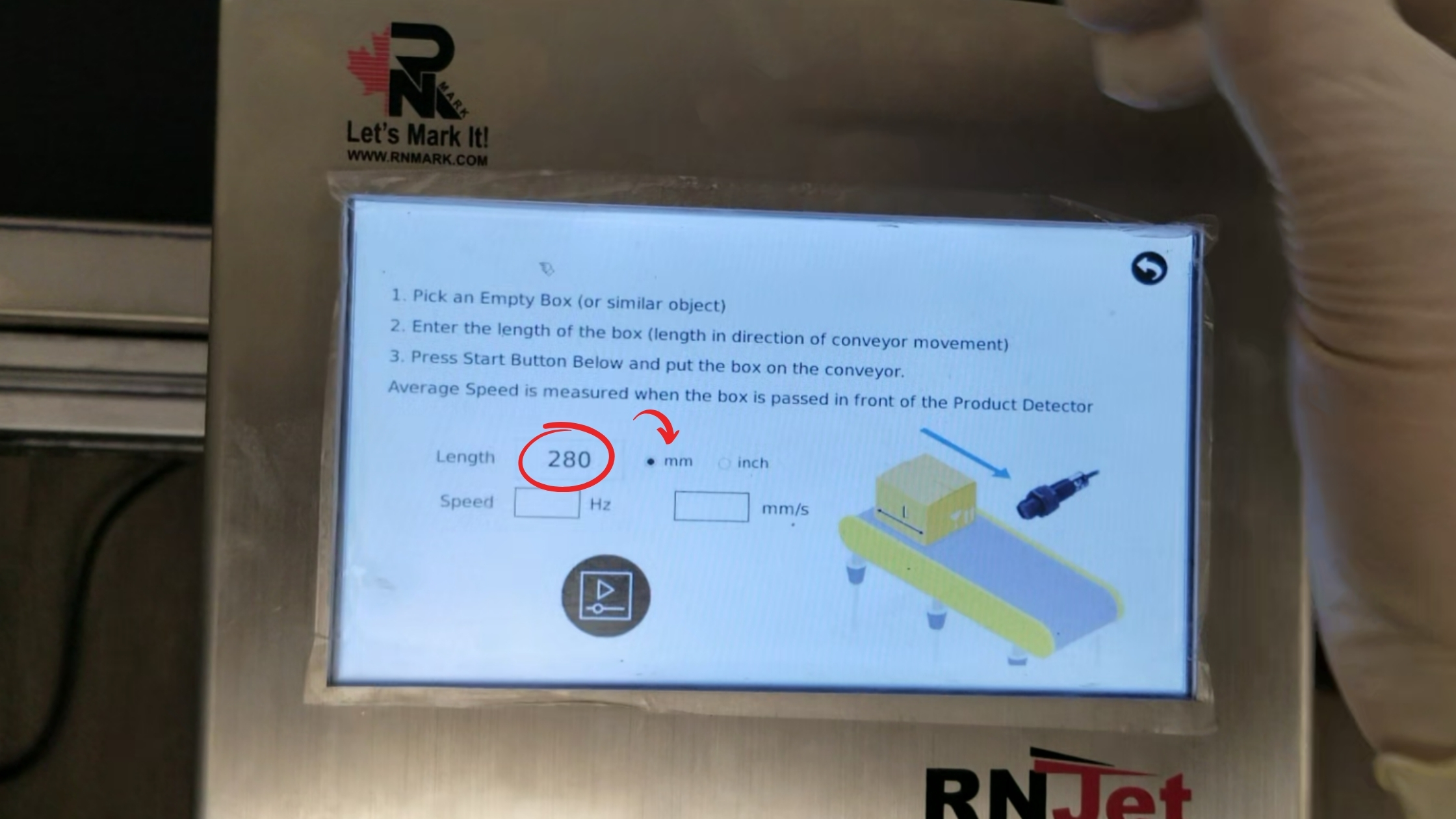
Step 4 – Enter your product length in either millimeters (MM) or inches. Here, we are using millimeters, and our paper length is 280MM. After entering the length, click on the start button.
Step 5 – You will now see a 30-second countdown. Place one of your products on the production line and pass it through the photocell to detect the speed. Refer to the GIF below for guidance.
Step 6 – The software will now display the average speed based on your production line. In this example, it is 89.49 mm/s for the conveyor belt speed. Copy this data into the speed input field.
How to Get Delay
Since you already got speed using above guide, it’s time to setup delay. For the delay setup, try to print on a product to make sure you receive a print (location doesn’t matter, make sure to get a print). Follow the below steps to get a print on your desire location.
During initial testing, after determining the print fire speed for your product based on your conveyor belt speed, you need to estimate the approximate delay for your product. For products longer than 10 centimeters (CM), you can start with a delay of around 50-100 mm. After obtaining the print, if you want to print at the starting point of the product, decrease the delay. Conversely, if you prefer to print further inside the product after it’s detected by the photocell, increase the delay.
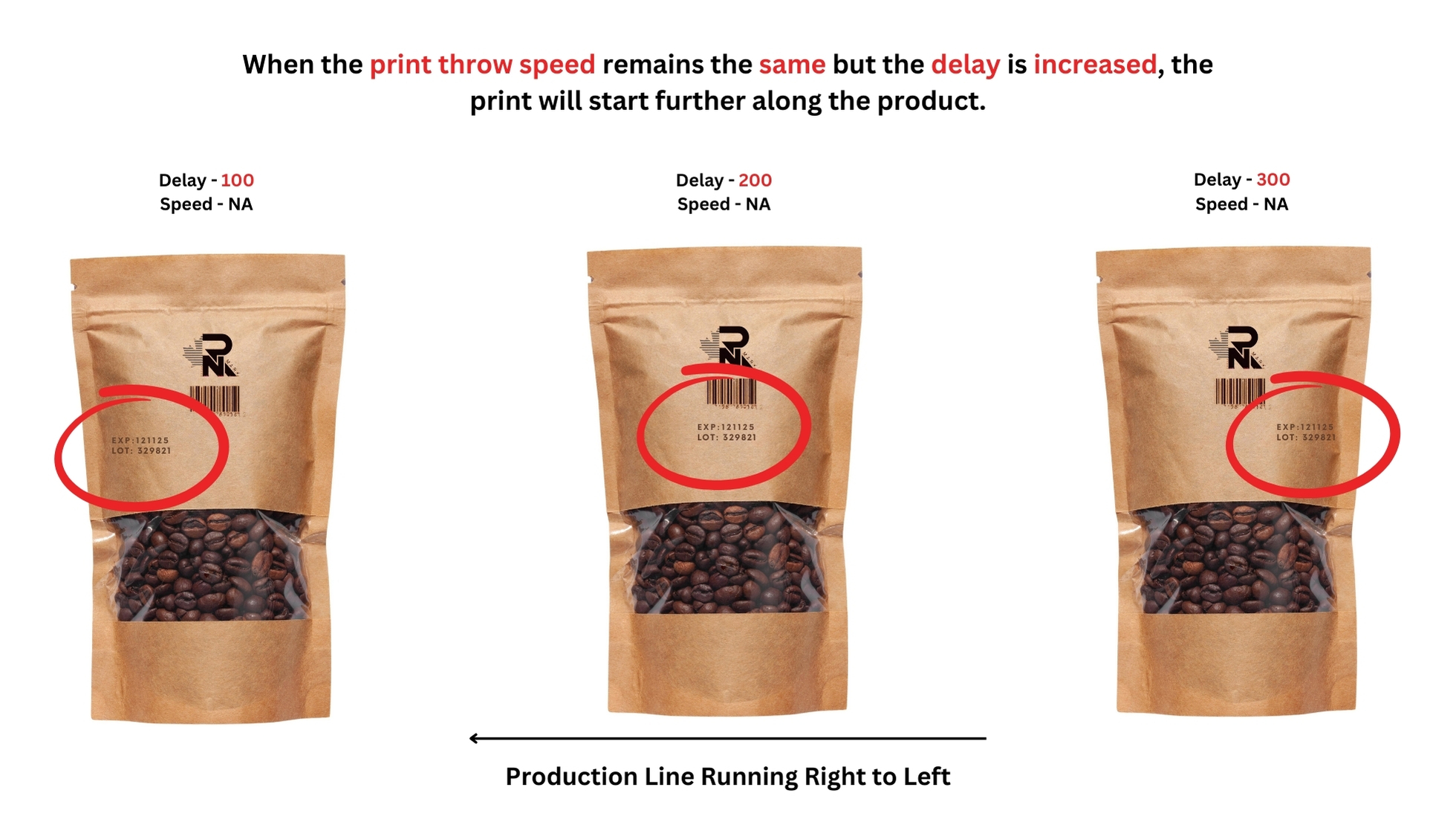
Based on our product and conveyer speed, delay 140mm print at the start of the product and increasing delay will print further inside of the product. So you can measure your delay settings to get the exact right location of the print.
Below is just an example that increasing delay will print further away, while decreasing delay will print nearby. Adjust delay and try to get different prints until it prints on your desired location. That’s it!

Comments are closed